Network printer sharing problem after installing latest security update B5005565
Uninstall Windows 10 Updates
Overview: While it is recommended to install all the available Windows 10 updates, from time to time, some updates might cause problems or crash your machine. This article provides two methods on how to uninstall Windows 10 updates:
- Uninstall Windows 10 updates from Windows Settings (or Control Panel)
- Uninstall Windows 10 updates from Command Prompt or PowerShell
Time estimated to complete this procedure: ~10 minutes
Important note: Some updates are not uninstallable and will not display in the list. Learn more
Uninstall Windows 10 updates from Windows Settings (or Control Panel)
Step 1. Open the Start Menu on your machine and go to Settings
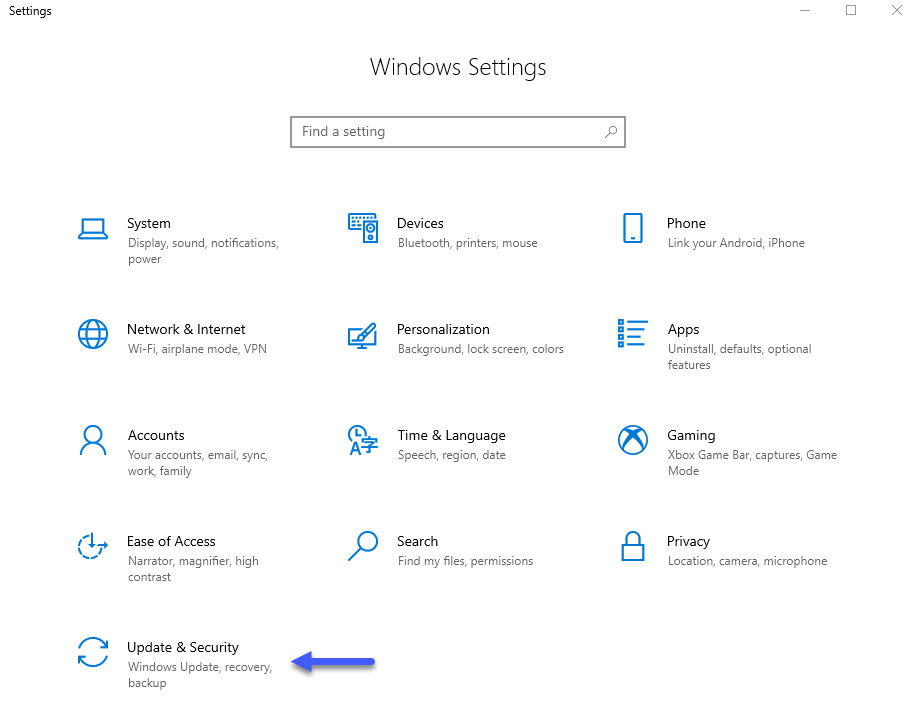
Step 2. From the Settings window, select Update & Security
Step 3. On the Windows Update page, click on View update history
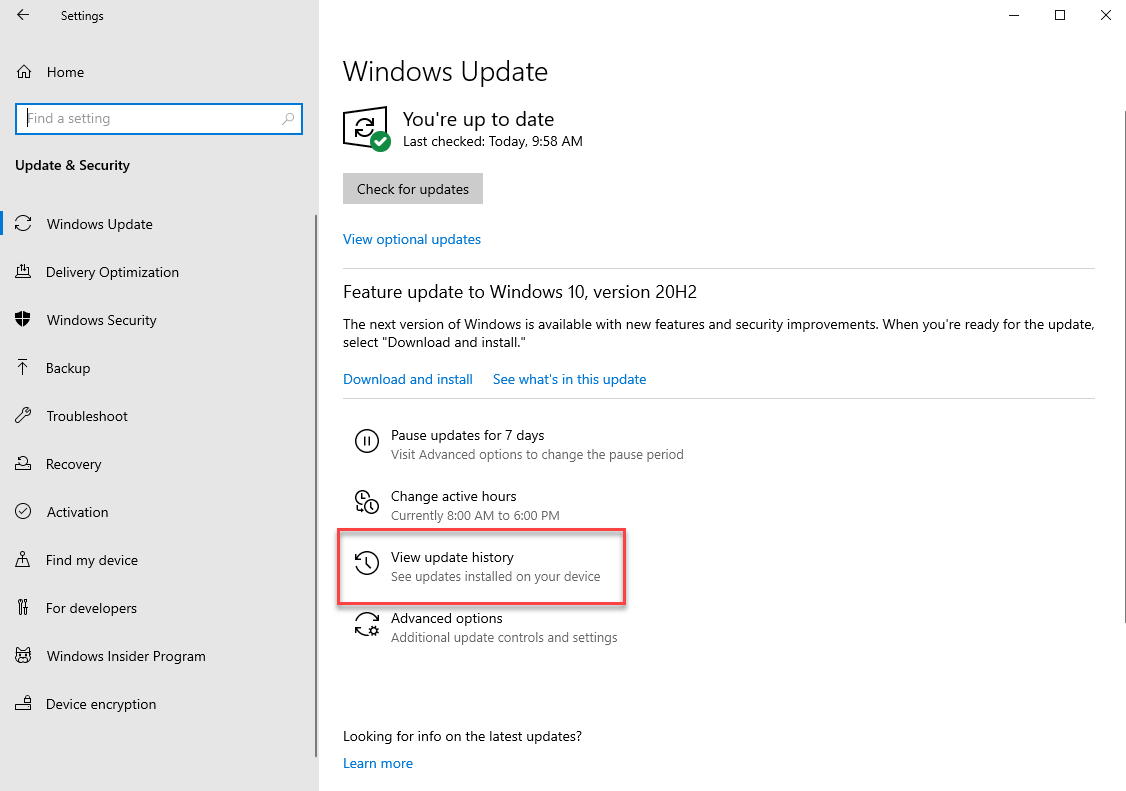
Step 4. In the View update history window, click on Uninstall updates

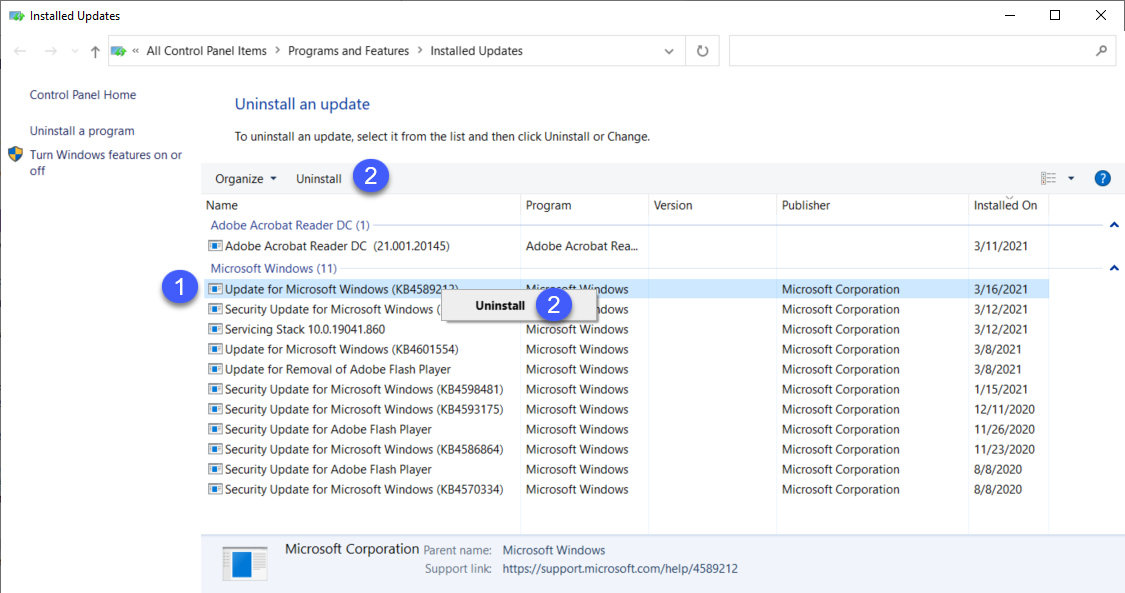
This will open the Control Panel and show you the list of installed updates. The list will include both Windows 10 updates as well as updates for other software installed on your device.
Step 5. Locate the update that you want to uninstall, then select it and click on Uninstall (or right-click on the update and then click on Uninstall)
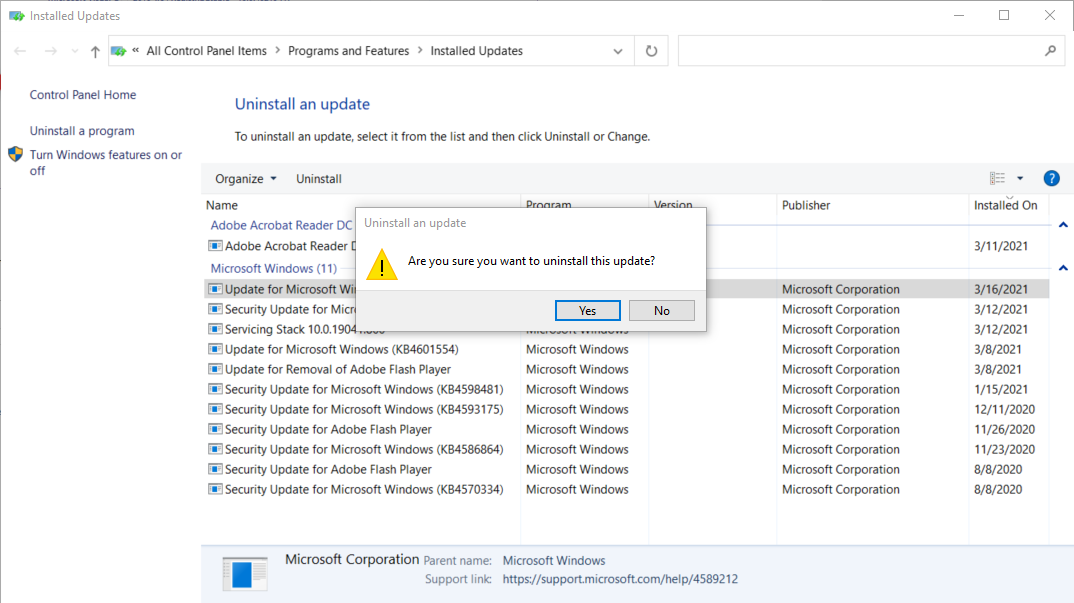
Step 6. A box will pop up to confirm that you want to uninstall the Update.
You can access the same list directly via Control Panel.
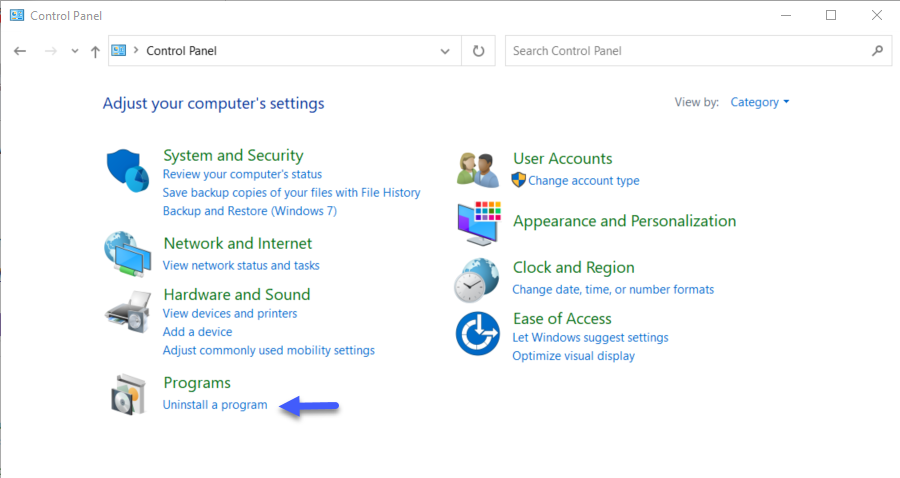
Step 1. Open the Control Panel and under Programs, click on Uninstall a program
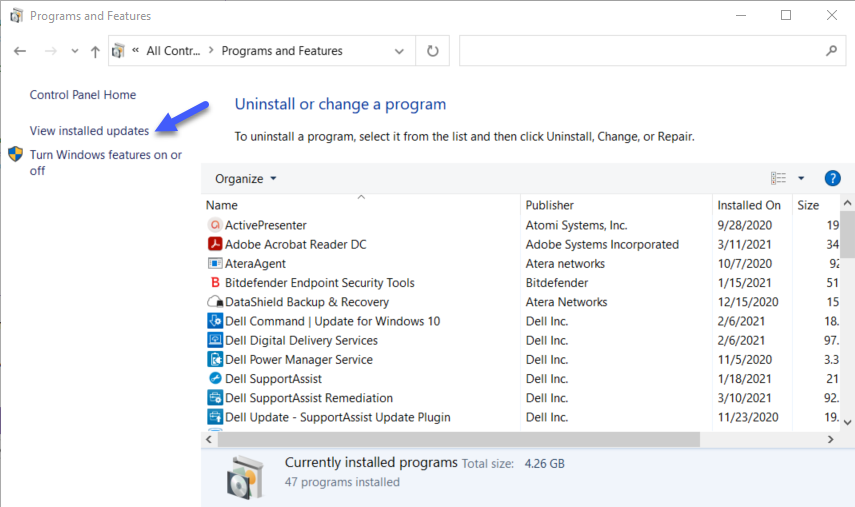
Step 2. On the next page, click on View installed updates from the left side panel
Step 3. Locate the update that you want to uninstall, then select it and click on Uninstall (or right-click on the update and then click on Uninstall)
Step 4. Confirm the update uninstall.
Uninstall Windows 10 updates from Command Prompt or PowerShell
You can also uninstall Windows 10 updates from Command Prompt or PowerShell.
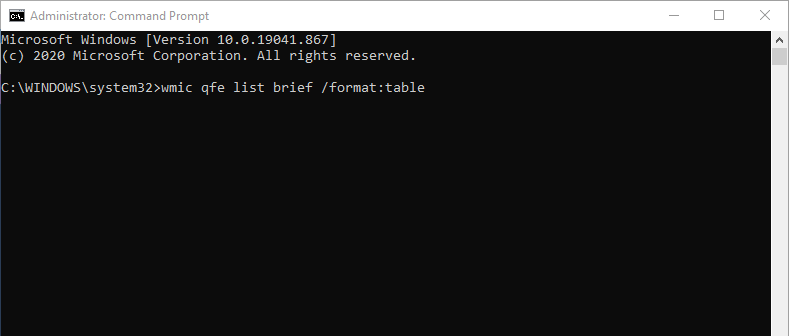
Step 1. Launch Command Prompt or PowerShell as administrator then type the following command:
wmic qfe list brief /format:table
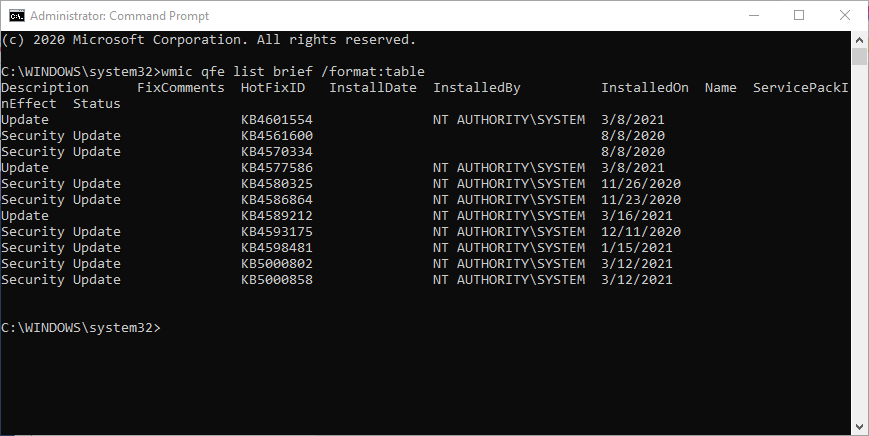
This command will display a list of all installed updates on your machine.
Step 2. Identify the update that you wish to uninstall
Step 3. Then type the following command to uninstall it:
wusa /uninstall /kb:[id]
Where [id] is the identification number of that update.
Ex: wusa /uninstall /kb:4589212
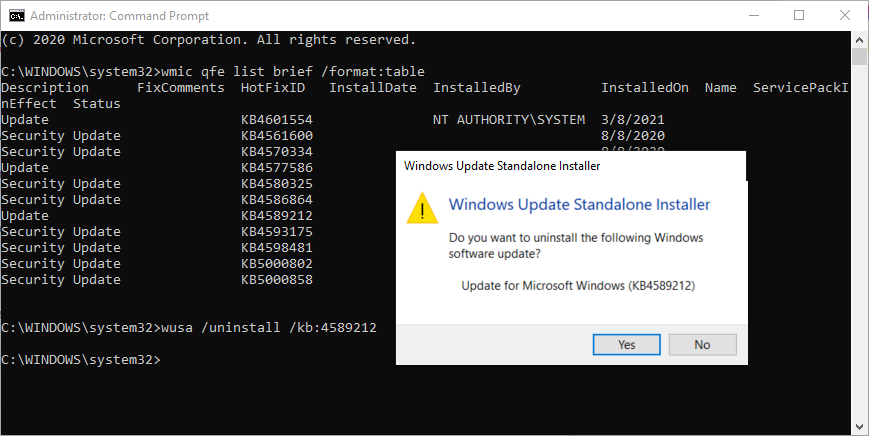
Step 4. A box will pop up to confirm that you want to uninstall the Update.
